


Peachy: Face App & Body Editor
4.61.62K Reviews
App Specs
- Version
- 1.280.74
- Updated On
- License
- Free
- Downloads
- 10,000,000+
- Developer
- InShot Video Editor
- Categories
- Photography
- Platform
- Android, iOS
Screenshots
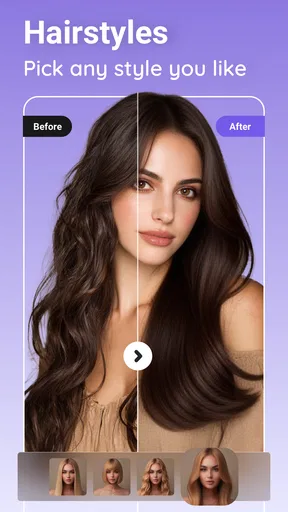
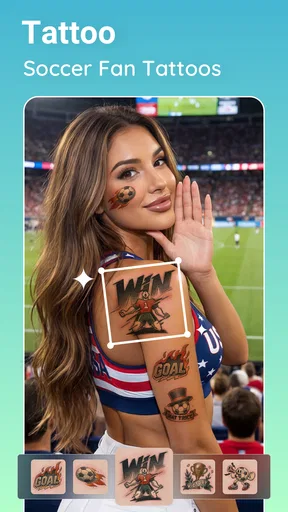
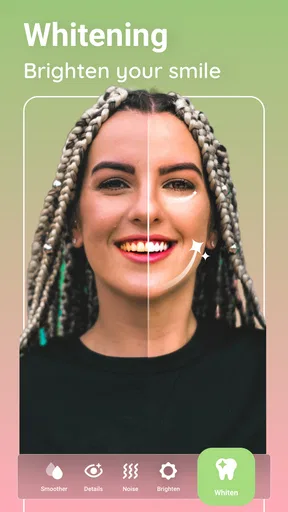
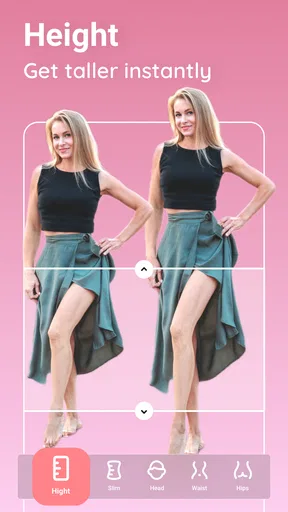
 Analysis by AppCompare
When I’m choosing a photo editor, I want to know two things: whether I can make a useful change quickly and whether I can stop before the photo stops looking like me. Peachy: Face App & Body Editor is built around portrait and body touch-ups, so it suits people who want a direct route to a more polished selfie rather than a full desktop-style editing workspace. I find that focus helpful, though it also means it is not the right tool for every kind of photography.
What you can expect to pay
Peachy is free to install, which makes it easy to try its editing approach before deciding whether it fits your routine. It also offers in-app purchases, with items priced from $0.99 to $39.99. That is a broad range, so I would check the purchase screen carefully and decide what you actually need before paying. The free starting point is a genuine advantage; it does not mean every option is free.
The app is made by InShot Video Editor and is listed in photography. It has a 4.7 average from around 124,000 ratings, with over 10 million installs. Those figures suggest that it has found a substantial audience, but they are not a substitute for testing its particular editing style on your own photos. It is rated for Everyone 10+, and the current version is 1.250.69, for devices running Android 7.0 or later.
A Selfie Lover’s Dream
First off, Peachy is incredibly user-friendly. You don’t need to be a tech wizard to navigate through its features, and that’s a win in my book. Once you open the app, you’re greeted with a simple interface that makes it easy to jump right into editing. Whether it’s adjusting the lighting or making those subtle enhancements, everything is just a tap away.
Where this focused editor earns its keep
The clearest value here is convenience. Peachy brings face and body adjustments together in a mobile photo editor, so I can work on a portrait without switching between a general-purpose editor and a separate retouching app. That is useful when the goal is a finished profile picture, a quick group-photo touch-up, or a more consistent look across a small set of social posts.
It is a different proposition from an all-purpose editor that emphasizes exposure, color curves, cropping, or detailed control over the whole image. Those tools are often better when I’m correcting a dim indoor shot, balancing a landscape, or trying to preserve a particular color mood. Peachy makes more sense when the person in the frame is the main subject and I want portrait-oriented adjustments close at hand.
A practical way to keep edits believable is to make one change at a time and check the whole image after each adjustment. A body reshape that seems minor while zoomed in can bend a straight doorframe or distort a nearby arm when viewed at normal size. I like to inspect the background edges before saving; they can reveal an edit that looks smooth when attention is fixed only on the subject.
Worth Reading Before You Choose

Flipboard Shows What News Apps Must Do Beyond the Feed

Switching to Android Auto Means Rethinking Your Driving Routine

Google Calendar Makes a Crowded Week Easier to Manage

Ludo King Makes the Most of the Minutes Between Plans

Baby Panda World Brings Quick Play to Modern Phones, but Its Game Library Feels Busy

ESPN’s Live Game View Makes Following Close Games Easier
Sculpt and Shape
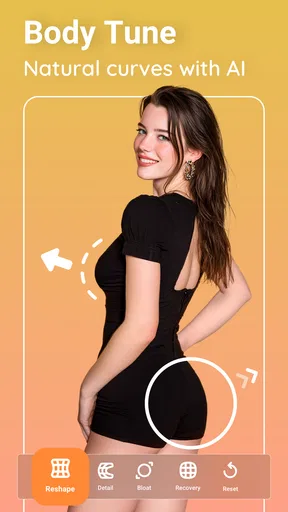
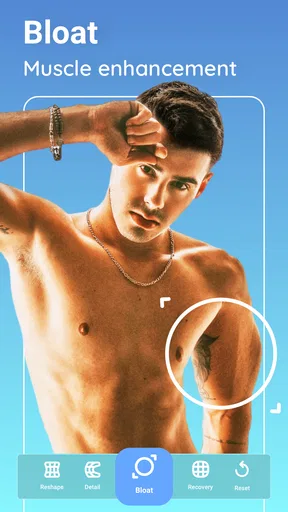
One of the standout features for me is the body editor. We’ve all had those moments where we wish we could just tweak our physique a tad before posting that beach photo, right? With Peachy, you can subtly alter your body shape, enhance muscles, or smooth out any areas you’re not quite happy with. It’s like having a magic wand for your body with the power to enhance your social media presence.
For the most convincing result, I treat shaping as a finishing touch rather than a way to rebuild the whole silhouette. Photos with a plain, uncluttered background are generally easier to judge than images with railings, tiles, or other straight lines close to the body. If a contour adjustment makes those surroundings look warped, I would undo it or choose a less ambitious edit. A slightly imperfect original usually looks more natural than a polished subject against a visibly bent background.
This also affects which photos are worth editing. A single-person portrait with space around the subject gives me room to assess the outline, while a crowded group photo makes body adjustments harder to keep discreet. For a group shot, I would focus on overall portrait cleanup instead of reshaping several people; the more areas I change, the more chances there are for the image to look inconsistent.
Face It, You’re Beautiful
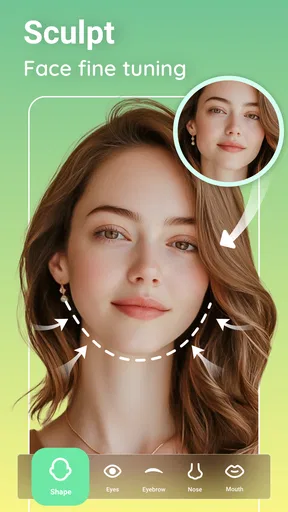
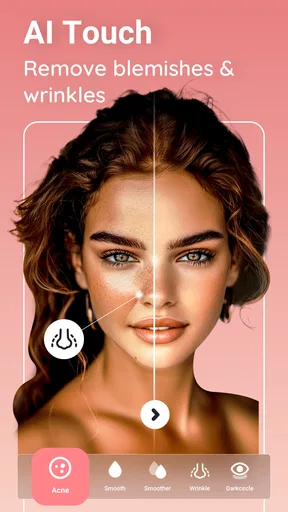
Now, let’s talk about the face editing capabilities. The app offers a range of tools to brighten your smile, remove blemishes, and even change your hair color. The best part is, these adjustments don’t make you look like a completely different person. The edits are subtle and realistic, maintaining the integrity of your natural beauty. Plus, the makeup feature is perfect for those days you’re feeling a bit extra but don’t have the energy to go through your entire makeup routine.
One useful distinction is between a temporary blemish and a lasting feature you want to keep. I would use cleanup selectively for a spot that happened to appear on the day, then leave freckles, lines, or other details alone unless I specifically wanted a more retouched style. That small choice makes a portrait feel like a tidied version of the moment rather than a replacement for it. Makeup and hair-color changes are also best judged against the original lighting: a choice that looks plausible in one photo may feel out of place in another.
For a quick everyday workflow, I would start with the photo that already has the expression and lighting I like, make any needed portrait adjustments, and only then consider a filter. This order helps me see whether the image needs a finishing effect at all. It also avoids using a strong overall treatment to hide a local issue that would be better handled directly.
Filters Galore
Peachy isn’t just about editing; it also offers a variety of filters to give your photos that extra pop. Whether you’re going for a vintage vibe or something more vibrant, you’re covered. It’s amazing how a simple filter can transform a photo from meh to wow. It’s like having access to a professional photographer’s toolkit without the hefty price tag.
Filters are most useful to me when I want several photos to feel like they belong together, but they can also exaggerate skin smoothing or make makeup look heavier. I would compare the filtered version with the untouched photo before settling on it, especially if the image will sit beside other pictures taken in different light. A consistent, restrained finish tends to work better across a feed than choosing a dramatic filter independently for every image.
A realistic quick-edit routine
Imagine I’ve taken a casual portrait before meeting friends and want to use it as a new profile photo. I can choose the frame where the light and expression already work, make a small face touch-up if needed, and check whether the photo benefits from any subtle body adjustment. I would then compare the edited result with the original at full view, paying attention to hair edges, clothing lines, and the background. If something looks artificial, I would reduce or remove that edit rather than piling on another effect.
That sequence is more valuable than chasing a flawless image: Peachy is most convenient when I know the one or two changes I want. If I’m still deciding on crop, color, brightness, and composition, a broader photo editor may be a better first stop. I can make those overall choices there, then use a portrait-focused tool only if the image still needs a targeted finishing pass.
Sharing Made Simple
Once you’ve perfected your masterpiece, sharing your photos is a breeze. The app allows you to directly upload your photos to your favorite social media platforms. Whether you’re an Instagram influencer or just sharing with friends on Facebook, Peachy makes sure your pics are ready for the spotlight.
Before sharing, I recommend looking at the image outside the editing view and checking that the final crop still works for its intended use. A close selfie can look good on its own but feel cramped once displayed as a small profile image. Keeping an untouched original also gives me the option to return to the starting point later, rather than treating one edited version as the only copy worth keeping.
Who is likely to get the most value
I’d point Peachy toward someone who regularly edits selfies or portraits on a phone and prefers quick, subject-focused tools to learning a more complex editor. It is also a reasonable option for someone who wants to experiment with makeup or subtle retouching without building a workflow around desktop software. Since it is free to install, trying a modest edit first is a sensible way to see whether its controls and results suit your taste.
I would skip it if my main need were detailed landscape correction, batch color work, or precise control over every part of a photograph. I would also avoid relying on it for a heavily altered body image if the aim is to preserve realistic proportions and surroundings. In those cases, a general photo editor—or simply leaving the image alone—may be the better choice. The strongest result is not always the most edited one.
Worth trying, with a light touch
Using Peachy: Face App & Body Editor has been a fun and easy way to enhance my photos without diving into complicated editing software. It’s perfect for anyone who wants to make quick edits on the go while still achieving professional-looking results. So, if you’re ready to take your selfies to the next level, give Peachy a try. Trust me, your Instagram feed will thank you!
Remember, while it’s fun to play around with edits, the best version of you is always the real one. Peachy just helps you bring out the best in your photos!
Pros
- Easy interface for quick edits.
- Variety of filters for customization.
- Real-time editing preview.
- Supports high-resolution exports.
- Frequent updates with new features.
Cons
- Some features require in-app purchases.
- Occasional ads can be distracting.
- Limited free editing options.
- Requires internet for full functionality.
- May consume significant battery life.
FAQs for Peachy: Face App & Body Editor
What features does Peachy: Face App & Body Editor offer?
Peachy provides a wide range of features to enhance selfies and body photos, including skin smoothing, blemish removal, teeth whitening, and more. It also offers body reshaping tools, allowing you to slim, lengthen, or reshape any part of your photo. Additionally, it includes filters and effects to give your images a professional touch.
Is Peachy: Face App & Body Editor free to use?
Peachy is free to download and use, but it offers in-app purchases for premium features. These premium tools include advanced editing options and additional filters. Users can choose to subscribe for a weekly, monthly, or yearly plan to access the full range of features without any limitations.
How user-friendly is Peachy: Face App & Body Editor for beginners?
Peachy is designed with a user-friendly interface, making it accessible for beginners. The app provides easy-to-follow instructions and intuitive tools that allow even those with no prior experience in photo editing to effectively enhance their images. The layout is clean, and each feature is clearly labeled, ensuring a smooth user experience.
Are there any privacy concerns with using Peachy?
Peachy takes user privacy seriously. It does not store or share personal photos without user consent. However, like many apps, it collects data to improve user experience. Users are encouraged to review the privacy policy before downloading to understand what data is collected and how it is used.
Can I share my edited photos directly from Peachy to social media?
Yes, Peachy allows you to share your edited photos directly to various social media platforms. With just a few taps, you can upload your enhanced images to Instagram, Facebook, or other networks. This feature makes it convenient for users to showcase their creativity and share their perfect selfies with friends and followers.


